UX fail: How polished products create friction, errors, and lost trust
Learn how to spot hidden UX friction, accessibility gaps, broken flows, and weak recovery using behavioral evidence before investing in a redesign.
By Ajay Khatri ·
TL;DR
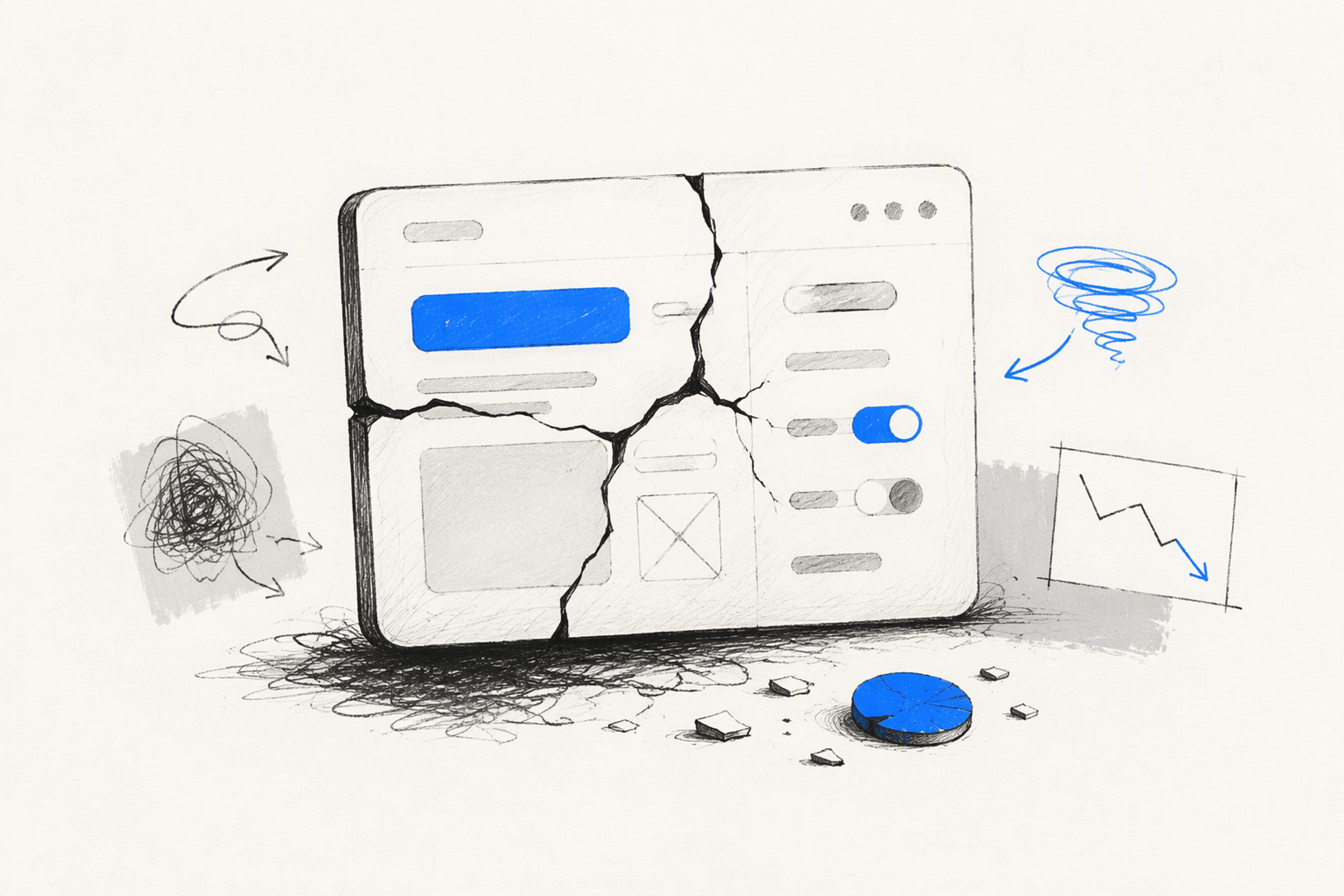
A UX fail is any preventable part of an experience that causes confusion, exclusion, loss of control, unnecessary effort, or task failure. Polished UI cannot compensate for misleading flows, broken responsive behavior, inaccessible components, manipulative conversion tactics, or weak recovery. We recommend diagnosing these problems through behavioral evidence, user research, accessibility testing, and live-product review before committing to a redesign.
Table of contents
- TL;DR
- Table of contents
- What is a UX fail—and what does bad UX mean?
- UX fail examples: When polished products get the journey wrong
- Form UX failures: Validation, defaults, phone fields, and error recovery
- Dark patterns are UX fails, even when they improve conversion
- Destructive actions need confirmation, undo, and grace periods
- Accessibility and responsive UX fails often appear after handoff
- Rage clicks, dead clicks, and backtracking: How to detect a UX fail
- How to run a UX audit before redesigning
- FAQ
- Turn UX friction into a stronger shipped product
What is a UX fail—and what does bad UX mean?
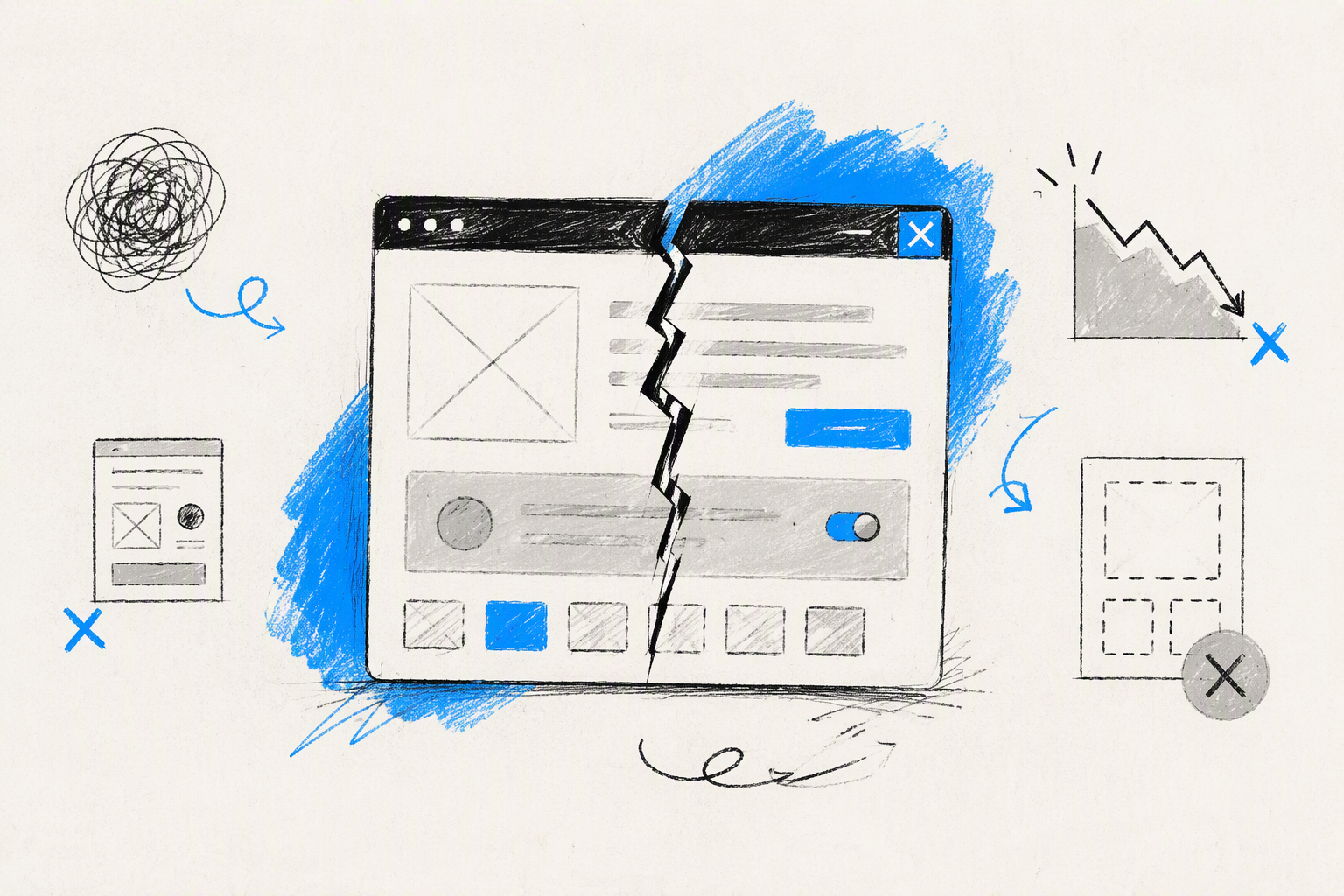
Most UX fails are not ugly screens. They are often polished design decisions that make a product metric look healthy while making the experience worse.
A UX fail is preventable friction, confusion, exclusion, loss of control, or failure to complete an intended task. It might be a checkout that clears completed fields after one validation error, an account setting that hides cancellation, or a navigation system that looks distinctive but makes destinations hard to predict.
UX quality belongs to the complete journey, not an isolated screen. A beautiful pricing page can lead into a manipulative purchase flow. A refined dashboard can become unusable when the browser is zoomed, the data is empty, or someone operates the interface with a keyboard.
That is why we evaluate experiences against goals and outcomes. Can people understand what is happening, make an informed decision, complete the task, recover from mistakes, and trust the result?
Repeated “user errors” often point to product problems. When people consistently misunderstand the same label, miss the same control, or choose the wrong default, the likely causes include:
- Weak visual or interaction cues
- Ambiguous labels
- Misleading defaults
- Missing constraints
- Delayed system feedback
- Poorly explained consequences
- Inconsistent component behavior
One complaint does not automatically prove a UX failure. A recurring pattern across support conversations, reviews, analytics, testing, and observed behavior deserves investigation.
Our broader principles of user experience help teams assess these patterns through clarity, control, consistency, accessibility, feedback, and task completion rather than subjective preference.
Bad UX versus bad UI
Bad UI concerns the presentation and interaction layer: typography, hierarchy, spacing, controls, states, and visual consistency. Bad UX concerns whether the complete experience helps someone achieve a goal effectively and with confidence.
The two overlap, but they are not interchangeable. Poor visual hierarchy can create a UX problem, while a visually excellent interface can still produce a bad experience.
Consider a navigation menu built around elegant abstract icons. The animation is smooth, the visual language is distinctive, and every icon fits the brand system. Yet users cannot predict which icon opens billing, projects, or support.
That interface shows polished UI craft but weak UX. A stronger version can preserve its visual character while adding familiar labels, predictable grouping, visible selection states, and clear mobile behavior.
The same distinction applies to speed and accessibility. An attractive custom control fails as an experience if it has no accessible name, visible focus state, keyboard operation, loading feedback, or announced error state.
Five signals of a UX problem
We look for observable signals rather than asking whether someone “likes” a design:
- Hesitation: People pause, scan repeatedly, open and close menus, or ask what to do next.
- Preventable errors: They select unintended options, enter rejected formats, or trigger actions accidentally.
- Repeated effort: They re-enter information, revisit pages, retry submissions, or repeat searches.
- Loss of control: The interface changes data, starts a process, or commits a choice without clear consent.
- Failed recovery: People cannot undo, correct, resume, or understand how to proceed after an error.
These signals make UX critique more useful. “The page feels confusing” becomes “people repeatedly return to the pricing page because the checkout does not show which plan they selected.”
That shift gives a product team something it can investigate, reproduce, prioritize, and fix.
UX fail examples: When polished products get the journey wrong
Lists of amusing UX fail examples can make bad design look like a collection of isolated mistakes. Product teams need a more useful model: organize failures around what they prevent people from doing.
The same consequences recur across onboarding, navigation, search, checkout, account settings, notifications, and cancellation:
- People cannot find the next step.
- They cannot predict what an action will do.
- They do not know whether an action succeeded.
- They complete the wrong action accidentally.
- They cannot recover without losing work.
- They are blocked by assumptions they cannot satisfy.
In onboarding, mandatory tours can delay the first valuable action while explaining features without context. In search, weak filters and disappearing queries force repeated work. During checkout, late cost disclosure or destructive validation can undermine confidence at the point of commitment.
Account settings often bury high-impact controls under vague labels. Notifications may create urgency without explaining what changed. Cancellation flows can turn a straightforward decision into a maze of retention screens, phone calls, and misleading buttons.
Recurring complaints in app reviews, support conversations, and community threads—including discussions about UX fails on Reddit—can provide useful qualitative evidence. They do not establish the cause on their own, but they reveal expectations, language, and moments worth investigating.
Confusing navigation and hidden system status
Navigation fails when visual novelty displaces predictability. Abstract icons, hidden gestures, disappearing controls, and unconventional page transitions increase the knowledge someone needs before using the product.
A visual system can still be expressive without making every destination a puzzle. We recommend combining personality with:
- Recognizable labels
- Stable placement
- Clear selected states
- Consistent back behavior
- Visible hierarchy
- Appropriate breadcrumbs or progress cues
- Search that preserves queries and filters
Hidden system status creates a related failure. If someone selects “Save” and receives no visible response, repeated attempts are rational. The interface has not confirmed whether the first action worked.
Loading, success, empty, offline, and error states are not secondary screens. They are part of the interaction. A delayed operation needs immediate acknowledgment, an understandable status, protection against duplicate submission, and a clear final result.
Accidental actions and weak recovery
Someone selects “Delete,” sees an item disappear, and assumes it is gone. After a refresh, the item returns because the operation failed silently. One small interaction has now damaged trust in the product.
Accidental actions also come from overlapping targets, ambiguous icons, sensitive swipe gestures, default focus on destructive controls, and buttons that remain active during submission. Back buttons can destroy progress when they behave like an exit rather than a previous step.
A resilient experience assumes that interruptions and mistakes will happen. It protects work, communicates consequences, and gives people a route back.
That means:
- Preventing duplicate requests
- Preserving drafts and form data
- Showing pending and completed states
- Providing undo when reversal is straightforward
- Confirming high-risk, irreversible actions
- Returning people to a predictable location
- Explaining failures without exposing technical noise
Good versus bad UX design
A useful comparison changes the underlying journey, not just its colors or spacing.
| Bad UX design | Better UX design | Principle |
|---|---|---|
| Abstract navigation icons without labels | Distinctive icons paired with clear labels and stable grouping | Recognition over recall |
| Search clears the query after no results | Search preserves the query and suggests useful adjustments | Support recovery |
| Checkout reveals validation only after submission | Timely inline guidance plus a complete error summary after submission | Prevent and explain errors |
| Delete happens after one ambiguous action | Specific confirmation or undo, based on risk and reversibility | Match safeguards to consequences |
| Mobile keyboard covers the primary action | Layout responds to the viewport and keeps the active task reachable | Design for real conditions |
| Custom control works only with a pointer | Semantic, keyboard-operable control with focus and announced states | Inclusive interaction |
The strongest alternative is not always the one with the fewest steps. A confirmation step can be valuable when the consequence is severe. A short flow can still be poor UX if it obtains consent through ambiguity.
Good UX reduces unnecessary effort while preserving understanding and control.
Form UX failures: Validation, defaults, phone fields, and error recovery
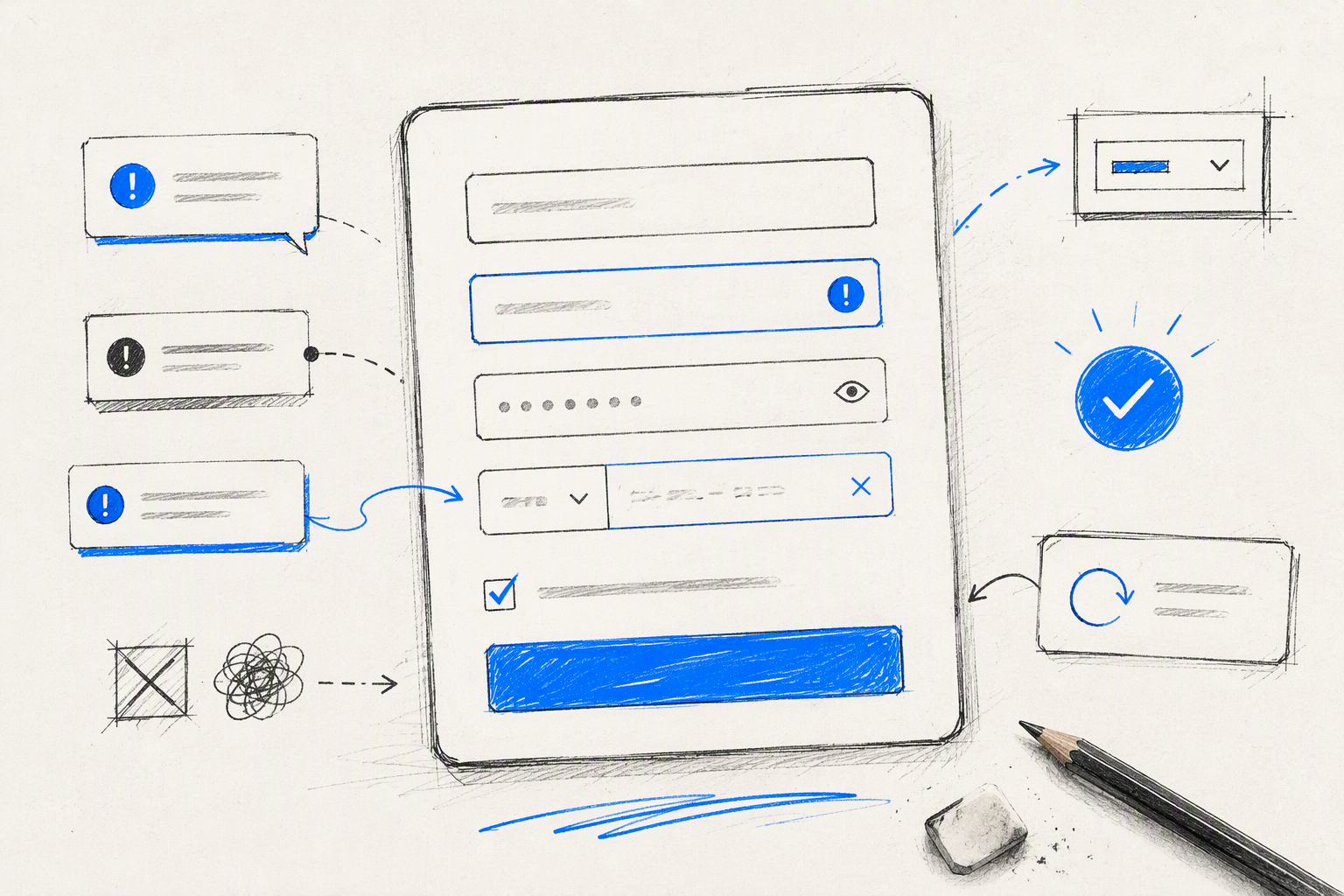
Forms expose the gap between a visually complete design and a production-ready experience. A mockup can show pristine fields, but real people bring incomplete information, password managers, autofill, copied data, international formats, slow connections, and accidental navigation.
Common form UX failures include:
- Showing errors before someone has finished typing
- Using messages such as “Invalid input” without recovery guidance
- Requiring information the task does not need
- Clearing valid fields after one error
- Blocking paste into email, password, or verification fields
- Breaking browser autofill
- Rejecting harmless spaces or formatting
- Disabling submission without explaining why
- Moving focus unpredictably after validation
Consider a checkout that rejects a phone number only after submission, provides no accepted format, and clears the completed address fields. The problem is not simply an incorrect phone field. The experience combines unclear expectations, late feedback, destructive recovery, and unnecessary repeated work.
A stronger form gives relevant guidance near the field, accepts reasonable formatting, preserves valid data, and moves attention to an understandable error. The person should have to fix the smallest possible part of the submission.
Defaults require similar judgment. A default country based on clear context may reduce effort. A preselected paid add-on with a visually weak opt-out manipulates behavior.
Safe defaults are predictable, visible, easy to change, and unlikely to create material harm. Risky or costly choices require active, informed selection.
Validation should explain recovery
An error message should identify what happened and what action will resolve it. “Enter a phone number with the country code, such as +91…” is more useful than “Invalid phone.”
Effective validation is:
- Specific: It identifies the affected input and the actual issue.
- Nearby: The message appears beside or is clearly connected to the field.
- Timely: It does not interrupt typing, but it does not delay useful guidance unnecessarily.
- Persistent: It remains available until the problem is resolved.
- Accessible: It is programmatically associated with the field and announced when appropriate.
- Non-destructive: It preserves valid information and progress.
After submission, moving focus to an error summary can help people understand the overall state, especially in longer forms. Each summary item should connect to the relevant field, while inline messages provide local guidance.
Color alone is not enough. Errors need text, clear relationships, visible focus, and status communication that works with assistive technology.
International inputs need flexible assumptions
Phone numbers, addresses, names, and postal codes do not follow one universal structure. A rigid form often exposes the design team’s local assumptions rather than a genuine business requirement.
International phone fields should account for country codes and reasonable formatting variations. Names may contain spaces, hyphens, diacritics, or structures that do not fit “first name plus last name.” Addresses vary in order, required elements, and postal conventions.
Localization also changes label length, reading direction, and available space. A component that works with short English text may overflow or hide actions in another language.
We recommend storing only the structure the product genuinely needs. Flexible input paired with careful normalization is usually more resilient than forcing everyone to imitate one market’s format.
Dark patterns are UX fails, even when they improve conversion
More registrations, subscriptions, clicks, or page views do not automatically indicate better UX. A metric can rise because people were pressured, misled, or prevented from choosing freely.
Dark patterns include:
- Forced registration before the value is clear
- Costs disclosed late in checkout
- Paid add-ons selected by default
- Confirm-shaming that insults the decline option
- Advertisements disguised as product actions
- Easy subscription paired with difficult cancellation
- Visual emphasis that makes the costly choice appear mandatory
These patterns may improve a short-term funnel metric. They can also lead to accidental subscriptions, refund requests, support contacts, distrust, churn, and reputational damage.
Persuasion makes value understandable. Manipulation obscures the choice or exploits attention.
We distinguish them using four tests:
- Clarity: Are the offer, price, consequence, and alternative understandable?
- Consent: Did the person make an active and informed choice?
- Symmetry: Are acceptance and refusal presented with reasonable balance?
- Reversibility: Can the decision be changed without disproportionate friction?
A pricing form that preselects a paid add-on may report higher attachment. If customers did not notice the selection and later request refunds, the product has not created healthy conversion. It has moved confusion downstream.
Measure informed completion, not coerced completion
Conversion rate needs context. We recommend pairing it with measures such as:
- Cancellation rate
- Refund rate
- Complaint and support volume
- Retention
- Repeat usage
- Task success
- Time to value
- Error and recovery behavior
Teams should also ask whether people understood the choice and could reverse it without artificial obstruction. That is particularly important for subscriptions, financial commitments, data sharing, and account deletion.
An experiment is not successful merely because the preferred business action increased. The quality of consent and the downstream relationship matter.
More engagement can mean more confusion
Long sessions, repeated page views, and extra clicks are often described as engagement. In a task-oriented product, those same signals can mean that people are lost.
Someone revisiting plan comparison pages may be deeply interested, or they may be unable to understand the difference between options. A person opening the same menu repeatedly may be exploring, or the expected destination may be missing.
Metrics need a model of intended behavior. We care less about maximizing interaction than about whether the product creates value with appropriate effort.
Destructive actions need confirmation, undo, and grace periods
Not every destructive action needs the same safeguard. The right pattern depends on severity, frequency, reversibility, and the value of what could be lost.
A confirmation dialog helps when an action is rare, high-impact, or difficult to reverse. It becomes noise when shown for frequent, low-risk actions, training people to dismiss warnings automatically.
Undo works well for frequent actions that can be reversed reliably, such as archiving a message or removing an item from a list. It allows forward momentum without making a mistake permanent.
High-value content, workspaces, and accounts may need delayed permanent deletion. A visible recovery window gives people time to reverse an accidental or compromised action while keeping the deletion process clear.
Destructive labels should name the consequence. “Delete project permanently” is stronger than “Yes.” Where useful, the interface should also identify the affected item so there is no ambiguity.
Design recovery before designing the warning
Warnings ask people to predict whether they are making a mistake. Recovery acknowledges that mistakes, changed decisions, and interruptions are unavoidable.
We recommend defining recovery behavior early:
- Are drafts saved?
- Can deleted content be restored?
- How long is history retained?
- What happens to linked records?
- Does undo restore the previous order and state?
- What happens if the connection fails midway?
- Is recovery available across devices?
The restored state should be predictable. Bringing back an item without its metadata, permissions, or placement can create a second failure.
Recovery is part of the primary journey, not an edge case. If losing work would matter, restoring it deserves as much design attention as creating it.
Prevent accidental actions across input modes
Pointer-based review catches only part of the risk. Destructive interactions must also be checked for touch, keyboard, gesture, and asynchronous behavior.
Small adjacent touch targets can trigger the wrong action. Global keyboard shortcuts can fire while someone is typing. Swipe gestures can activate during ordinary scrolling. A slow response can invite duplicate submission.
Controls should enter a clear loading state when repetition would cause harm, but they should not appear frozen. Immediate acknowledgment, duplicate-request protection where possible, and visible completion reduce uncertainty and repeated actions.
Accessibility and responsive UX fails often appear after handoff
Accessibility is not a contrast check at the end of a project. It includes labels, semantic structure, visible focus, logical focus order, keyboard access, zoom behavior, error announcements, motion preferences, readable content, and usable target sizes.
A custom component may look refined in a mockup while lacking an accessible name, keyboard behavior, or meaningful state. The interface appears finished because its missing qualities are invisible in a static frame.
Responsive failures emerge in a similar way. A desktop prototype becomes a mobile production failure when controls overlap, a sticky element blocks content, or the virtual keyboard covers the primary action.
Real content and browser behavior expose assumptions that fixed artboards conceal. Long names, translated labels, empty data, slow requests, validation messages, and permission errors all reshape layouts.
This is why our approach to product design that connects UX, UI, and the final build treats implementation as part of design quality. The goal is not merely to make the browser resemble the mockup. It is to preserve the intended experience under real conditions.
Static mockups hide dynamic failures
A robust review needs more than ideal content on a standard viewport. We test conditions such as:
- Long labels and localized copy
- Empty, partial, and unusually large datasets
- Slow or interrupted connections
- Overflow and text wrapping
- Validation and server errors
- Expired sessions
- Browser zoom
- Small screens and landscape orientation
- Keyboard-only operation
- Relevant assistive technologies
State coverage matters too. Components often reach production without defined hover, focus, disabled, loading, empty, error, or success behavior.
Even familiar patterns need interaction detail. Our guide to clear, accessible pagination, for example, shows why labels, current-page communication, focus behavior, responsive choices, and URL state matter beyond the visible row of page numbers.
A better design-to-frontend handoff
A screenshot communicates appearance. It rarely communicates enough behavior.
A useful handoff defines:
- Component purpose and semantics
- Interaction states
- Keyboard behavior
- Focus management
- Responsive rules
- Content constraints
- Validation logic
- Loading and failure behavior
- Accessibility requirements
- Acceptance criteria
Design and frontend teams should also share a language for tokens, components, breakpoints, and states. That reduces one-off interpretation and makes inconsistencies easier to catch.
Most importantly, we recommend reviewing the built experience in the browser. Approving screenshots cannot reveal broken tab order, blocked content, layout shifts, weak announcements, or gestures that conflict with scrolling.
Implementation-aware UX/UI design services help keep the reasoning attached to the product through delivery. Another review meeting cannot compensate for interaction decisions that were never specified or verified.
Rage clicks, dead clicks, and backtracking: How to detect a UX fail
Behavioral signals turn vague concern into a testable hypothesis. They do not automatically prove the cause.
A rage click may indicate weak feedback, a blocked interface, a delayed response, misleading hierarchy, or a control that looks interactive but is not. It may also reflect instrumentation noise or unusual individual behavior.
Useful UX friction signals include:
- Repeated rapid clicks or taps
- Dead clicks on non-interactive elements
- Multiple corrections to the same field
- Navigation loops
- Duplicate submissions
- Repeated use of the browser’s back control
- Exit during a critical step
- Support escalation after a failed task
Product analytics and session evidence reveal where to investigate. Usability testing, interviews, surveys, reviews, and support conversations help explain expectations and intent.
Segmentation is essential. A journey may work on desktop but fail on a particular mobile viewport. A form problem may affect one browser, traffic source, user type, region, or account state.
Without segmentation, production-specific failures can disappear inside averages.
Engagement metrics can hide friction
Longer sessions are not inherently better. More page views are not inherently better. Extra interaction can indicate exploration, but it can also indicate uncertainty and repeated effort.
The appropriate measure depends on the product and task. Useful outcomes may include:
- Successful completion
- Time to first value
- Fewer preventable errors
- Effective recovery
- Confidence after completion
- Retention without coercion
- Lower support dependency
- Preserved trust
A documentation product may benefit from deeper reading. A password reset flow should usually be fast and uneventful. Interpreting both through the same engagement metric would distort the experience.
Separate symptoms from causes
A rage click is a symptom. The cause might be delayed feedback, a disabled control, a transparent overlay, an unexpected prerequisite, or visual styling that promises interactivity.
Redesigning an entire page before validating the cause wastes effort and may introduce new problems. We first reproduce the behavior, inspect the interface state, review technical logs where appropriate, and observe representative users.
A focused fix can then be tested. If the button needs immediate feedback, changing the whole information architecture will not address the actual issue.
How to run a UX audit before redesigning
A broad redesign is rarely the best first move. It changes many variables at once, consumes implementation capacity, and can erase familiar patterns without resolving the underlying failure.
A UX audit starts with business goals and critical user tasks. It traces evidence across the journey, from entry point to outcome and recovery.
We prioritize findings using:
- Impact on task completion
- Frequency
- Number and type of affected users
- Reversibility
- Accessibility impact
- Trust and safety implications
- Business risk
- Effort and dependencies
Each recommendation should be testable. “Improve checkout UX” is not actionable. “Preserve valid fields after server validation and move focus to a linked error summary” gives the team a behavior to design, build, and verify.
The recommendation also needs an owner, acceptance criteria, and a success measure.
“Fail fast” should not mean shipping avoidable friction to everyone. It means testing risky assumptions quickly through prototypes, usability sessions, staged releases, and targeted experiments.
A practical UX audit sequence
We use a compact sequence that keeps the audit connected to evidence:
- Map the critical journey. Define the entry point, intended outcome, key decisions, dependencies, and recovery paths.
- Collect existing evidence. Review analytics, support themes, research, reviews, accessibility findings, and known responsive defects.
- Reproduce the experience. Test the live product across realistic devices, browsers, account states, content conditions, and input methods.
- Document symptoms and hypotheses. Separate observed behavior from the suspected cause.
- Prioritize the findings. Rank them by user impact, frequency, inclusion, risk, and effort.
- Prototype alternatives. Change the smallest meaningful part of the journey where possible.
- Test the assumption. Use representative tasks and participants rather than relying on internal preference.
- Verify production. Review the built flow in the browser and compare the expected behavior with instrumentation and qualitative evidence.
This process may reveal that a redesign is necessary. It can also show that several focused component and flow corrections will produce better results with less disruption.
What a useful UX case study should show
A credible UX case study should explain the problem, evidence, constraints, reasoning, implementation decisions, and outcome. A sequence of polished mockups demonstrates visual output, not necessarily product judgment.
Hiring teams and product leaders need to see:
- What was failing
- How the failure was identified
- Which constraints shaped the solution
- What alternatives were considered
- Why the chosen direction was appropriate
- How accessibility and responsive behavior were handled
- What changed during implementation
- How the shipped result was evaluated
Strong product design portfolios make the connection between decisions and evidence visible. They also show whether the solution survived frontend execution instead of ending with an idealized presentation.
Is UX design declining—or is the role evolving?
UX design is not disappearing, but screen production is becoming easier to automate and commoditize. Producing attractive layouts alone is less defensible as a role.
The valuable work is shifting toward product judgment, research synthesis, accessibility, systems thinking, content clarity, experimentation, and implementation fluency. Teams still need people who can identify the right problem, resolve competing constraints, and protect the experience through production.
UI/UX is not doomed. Narrow, handoff-only versions of the role face pressure because they separate design decisions from product outcomes and technical reality.
At amajaying.com, we believe strong UX comes from staying close to the problem, the interface, and the shipped product. The work is not complete when the screen looks finished.
FAQ
Is UX design declining?
UX design is evolving rather than disappearing. Basic screen production is increasingly automated, but research synthesis, accessibility, product judgment, systems thinking, and implementation fluency remain valuable. Designers who connect user evidence to business goals and verify the built experience provide more value than those focused only on static deliverables.
What does “bad UX” mean?
Bad UX means an experience creates preventable confusion, effort, exclusion, loss of control, or task failure. It can result from unclear navigation, misleading defaults, weak feedback, inaccessible controls, destructive errors, or manipulative flows. A product can look visually polished and still provide bad UX across the complete journey.
Is UI/UX doomed?
No. The role is becoming more outcome-focused and technically connected. Visual production may be easier to automate, but teams still need sound judgment around workflows, behavior, accessibility, content, systems, research, and frontend execution. The durable skill is solving product problems, not merely drawing screens.
What is a UX problem?
A UX problem is a recurring condition that prevents people from understanding, completing, or recovering within a product journey. Observable signs include hesitation, repeated errors, backtracking, abandonment, accidental actions, and support escalation. The problem should be defined through evidence and user consequences rather than taste or internal opinion.
How can a team tell whether a UX issue needs a redesign?
Start by identifying the affected task, frequency, user impact, accessibility implications, and likely cause. Many issues can be corrected through focused changes to labels, feedback, validation, state handling, or component behavior. A broader redesign is justified when the underlying structure, mental model, or system repeatedly fails across the journey.
Turn UX friction into a stronger shipped product
If a polished product still creates hesitation, abandonment, support demand, or implementation inconsistency, we can help diagnose the journey and carry the solution from UX reasoning through UI craft and frontend delivery.
Explore amajaying.com to discuss an impact-driven product experience that holds together after launch.