Voice input UI: A practical design guide for real product workflows
Learn how to design voice input states, editable transcripts, permissions, accessibility, privacy, and recovery for smoother workflows. Explore the guide.
By Ajay Khatri ·
TL;DR
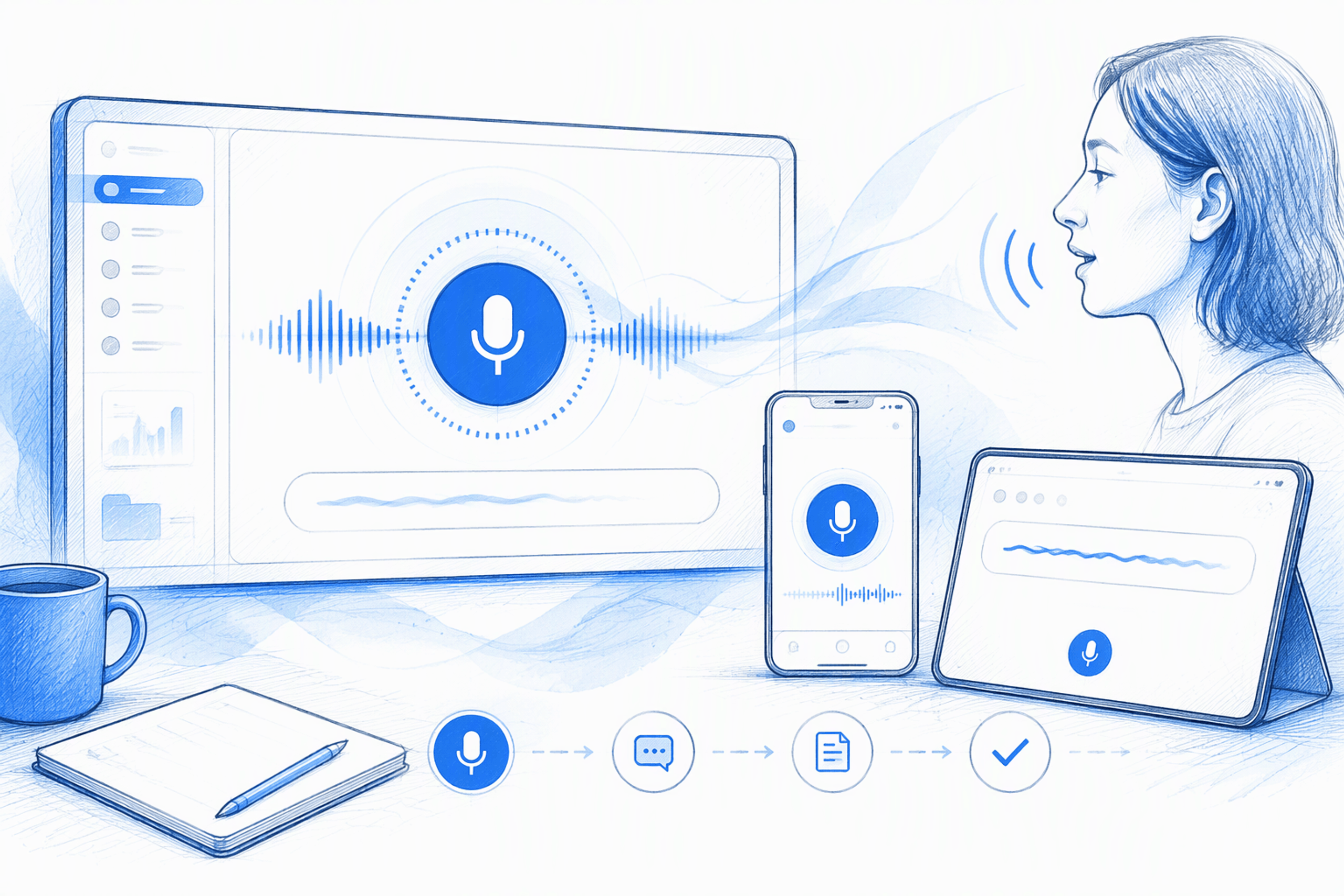
A microphone icon is not a complete voice input UI. A reliable experience communicates each state clearly, shows an editable transcript, preserves user control, and keeps typing available as a fallback. We recommend designing permissions, corrections, accessibility, privacy, and failure recovery before polishing waveforms or branded motion.
Table of Contents
- What is a voice input UI?
- The seven voice input UI states every product needs
- Designing live transcription, editing, and confirmation
- Push-to-talk or tap-to-toggle? Choose by context
- Useful feedback without decorative waveforms
- Designing permissions, privacy, and error recovery
- Accessible and responsive voice input UI
- From voice input UI design to frontend implementation
- FAQ
- Design a voice experience that works beyond the mockup
What is a voice input UI?
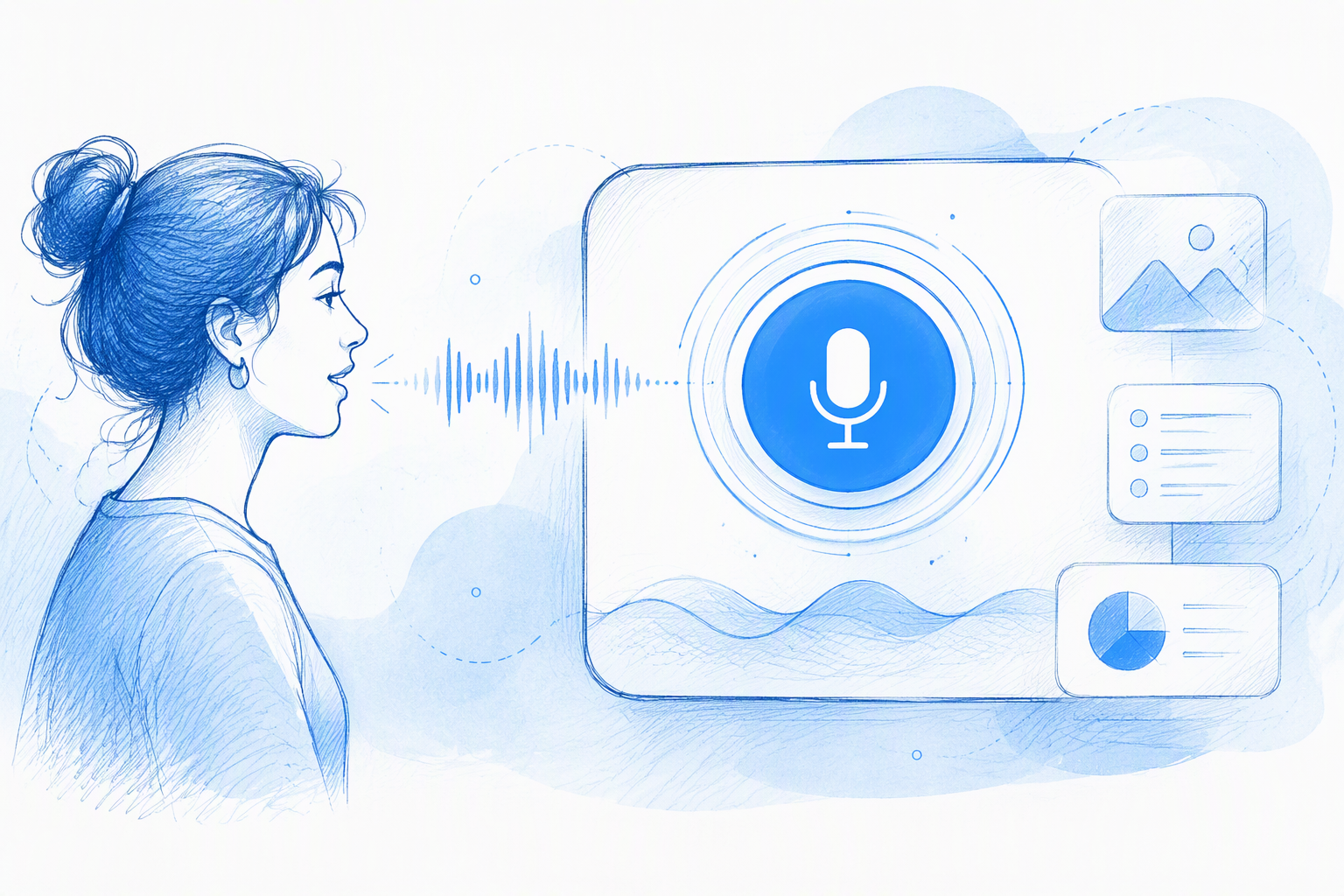
A voice input UI is the visible, interactive layer that lets someone speak into a product. It captures speech, communicates recording and processing status, presents a transcript, and supports correction, cancellation, or submission.
A familiar example is a search field with a microphone button. Once activated, the interface displays “Listening,” adds recognised words to the field, allows editing, and uses the existing search action to submit.
This pattern is narrower than a complete voice user interface, or VUI, built around an extended spoken conversation. Voice input often supports one focused task: entering a query, writing a message, creating a note, or completing a form field.
In an audio product, the user interface includes controls and feedback for recording, playback, audio levels, permissions, timing, current state, and errors. It is more than the styling around a microphone icon.
Voice input UI vs. voice assistant
Siri, Alexa, and Google Assistant are familiar voice assistants. They interpret requests, support multi-turn exchanges, and may perform actions across different services.
Voice input inside a product is usually more contained. Search, messaging, note-taking, and form dictation may require speech recognition, but they do not necessarily need a conversational personality or spoken response.
Our focus is the pattern teams can add to an existing web or mobile workflow without rebuilding the product around voice. If a product does require multi-turn interaction, the same intent, state, and recovery principles found in a strong chatbot UX design framework become relevant.
Why voice should usually complement typing
We recommend keeping the text field. People need to inspect recognition results, switch input methods, place a cursor, and correct one uncertain word without repeating an entire message.
A strong voice input experience is multimodal:
- Speak to enter content.
- Read the transcript to verify it.
- Type to make precise corrections.
- Submit through a familiar action.
- Cancel without losing unrelated work.
Our practical test is simple: speaking, reviewing, and correcting should feel easier than typing the same input. Accurate recognition alone is not enough if one mistake forces a restart.
The seven voice input UI states every product needs
For most production flows, we recommend defining seven states: idle, permission request, listening, paused, processing, success, and error. Each state needs a status message, visual treatment, available controls, transcript behaviour, and expected next action.
| State | Primary message | Essential controls | Transcript behaviour |
|---|---|---|---|
| Idle | “Use voice input” | Start, continue typing | Existing text remains editable |
| Permission | “Allow microphone access to dictate” | Continue, cancel | Draft remains untouched |
| Listening | “Listening” | Stop, pause, cancel | Interim text appears |
| Paused | “Recording paused” | Resume, finish, cancel | Captured text stays visible |
| Processing | “Preparing transcript” | Cancel where safe | Existing transcript is preserved |
| Success | “Transcript ready” | Edit, submit | Final text becomes editable |
| Error | Cause-specific message | Retry or fallback | Useful captured work remains |
Explicit labels are more dependable than animation alone. Pulsing circles and moving bars may reinforce a state, but “Listening,” “Paused,” and “Processing” explain what is happening.
Idle, permission, and listening
The idle state should expose a clearly labelled microphone action without implying that recording has started. A tooltip and accessible label such as “Start voice input” are more useful than an unexplained icon.
We recommend requesting microphone access only after someone selects voice input, not when the page loads. A short pre-permission message should explain why access is needed before the browser or operating-system prompt appears.
The listening UI needs:
- An unmistakable recording indicator.
- Visible “Listening” status text.
- A stop or finish control.
- A cancel control with clear consequences.
- Live transcription when available.
- Elapsed time when duration matters.
If the product detects audio but cannot identify meaningful speech, it should say so. No one should have to guess whether the interface is recording, waiting, or unresponsive.
Paused, processing, success, and error
Paused must look clearly different from listening. We can freeze or soften the active animation, change the status to “Paused,” and show resume, finish, and cancel actions.
Processing should preserve the transcript and confirm that recording has stopped. Duplicate submission may need to be disabled, but the whole interface should not appear frozen.
Success should return attention to the task rather than celebrate the technology. Place the cursor in the transcript, restore the normal submit action, and allow immediate editing.
An error state should answer three questions:
- What failed?
- Was the person’s work preserved?
- What can they do next?
“Couldn’t connect. Your draft is saved. Retry transcription or continue typing” is actionable. “Something went wrong” is not.
Designing live transcription, editing, and confirmation
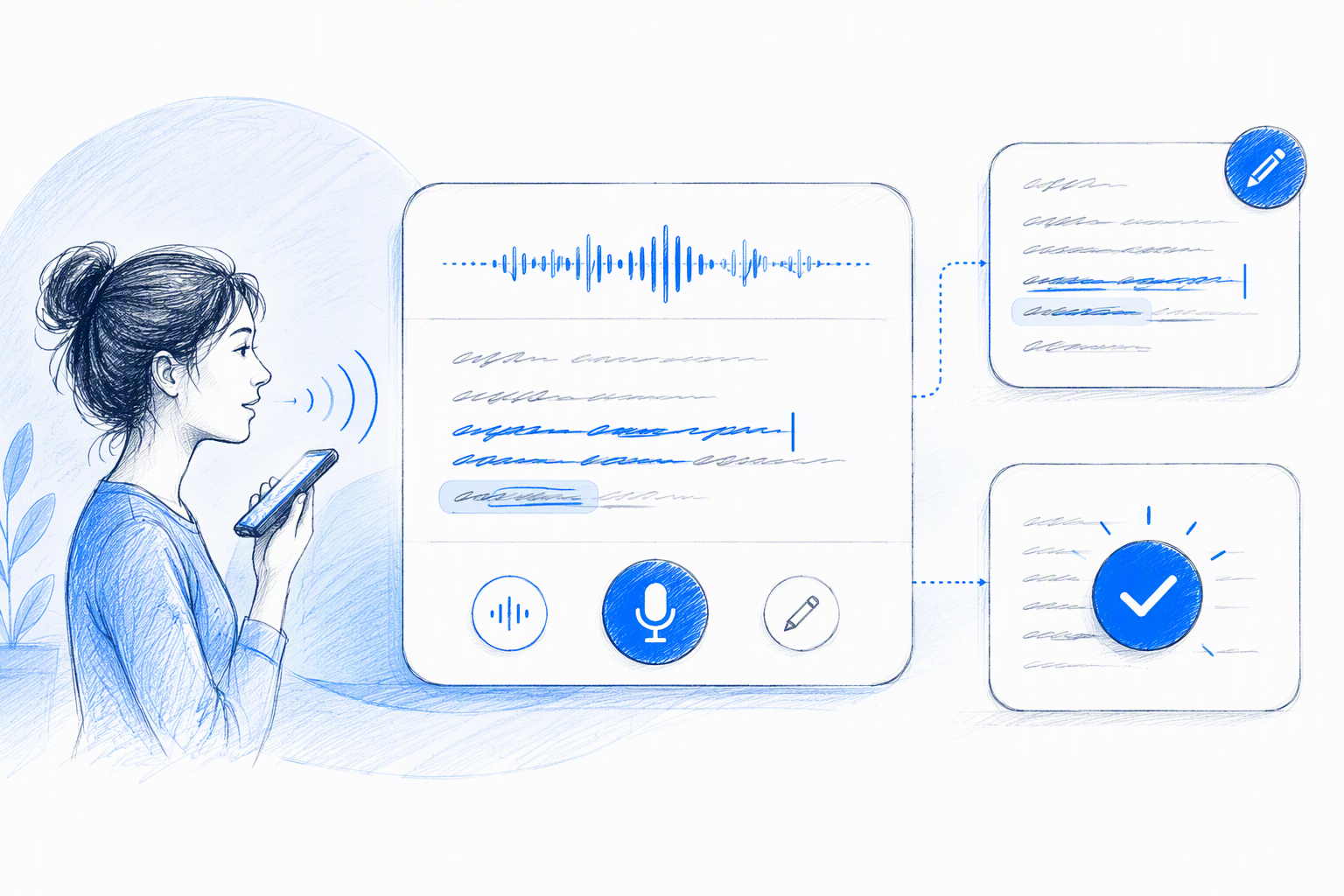
The transcript is the primary feedback surface in a speech-to-text UI. It shows whether the product heard someone more clearly than a waveform can.
Interim words can appear as speech is recognised, while confirmed text becomes visually stable. We keep the distinction subtle to avoid distracting flicker. Muted interim text, a light underline, or a restrained transition is often enough.
Correction belongs beside the transcript. People should be able to fix a word, punctuation mark, or short phrase instead of discarding an otherwise useful result.
Partial results and confidence indicators
Streaming recognition may revise words as more context arrives. We recommend differentiating unstable text without shifting the layout aggressively or animating every token.
Confidence should appear only when it supports an action. An unexplained percentage transfers interpretation work to the user without saying what to do.
A better low-confidence pattern highlights the uncertain phrase and offers clear options:
- Edit the phrase.
- Choose a suggested alternative.
- Repeat that section.
- Accept the current wording.
Use highlighting selectively. Turning the whole transcript into warning colours makes review harder and suggests that dependable text may also be wrong.
Correction before submission
An editable transcript should support standard text behaviour: cursor placement, selection, keyboard editing, deletion, and partial replacement. Voice should accelerate text creation, not introduce a separate document model.
We also preserve the submit action already used by the text workflow. A voice search should still use the standard search button or Enter key; a dictated message should use the normal send action.
Automatic submission may suit short, reversible commands. Explicit confirmation is safer for:
- Payments and purchases.
- Destructive actions.
- Ambiguous recognition.
- Long-form messages.
- Health, legal, or account information.
- Actions that are difficult to reverse.
When a transcription mistake could have meaningful consequences, review is part of the task rather than needless friction.
Push-to-talk or tap-to-toggle? Choose by context
Voice interaction models include hold-to-speak, push-to-talk, tap-to-toggle, and automatic turn-taking. Our choice should reflect message length, device, environment, dexterity, and the risk of accidental recording.
Labels and controls must match the model. “Hold to talk” requires active pressed-state feedback. “Tap to start” needs a persistent listening state and a clear stop action.
Automatic turn-taking may suit a conversational flow, but it depends on detecting when someone has finished speaking. For focused text entry, explicit start and stop controls are generally more predictable.
When push-to-talk works
Push-to-talk suits short commands, rapid team communication, walkie-talkie patterns, and some noisy environments. Sustained activation makes recording intentional and can reduce accidental capture.
Holding a control can also be tiring or impossible for some people, so we would not make it the only available method.
On desktop, a productivity form might offer a microphone button plus Space-key push-to-talk while the control has focus. The interface should announce when recording begins and ends without moving keyboard focus unexpectedly.
When tap-to-toggle works
Tap-to-toggle is often better for dictation, longer messages, and mobile use. The person taps once to start and again to stop, removing the need to maintain pressure.
The active state must remain visible even when attention moves to the transcript. Depending on the task, we may also provide separate pause, cancel, and finish actions.
A mobile messaging composer might combine:
- Tap-to-start recording.
- Visible elapsed time.
- Pause and resume.
- Cancel without sending.
- Editable transcription.
- A separate send control.
This model uses more interface space, but those controls address real needs rather than adding decorative complexity.
Why automatic recording can undermine trust
We do not recommend listening merely because a page, screen, or modal opened. What looks seamless in a prototype can feel invasive in a real environment.
Recording should follow a clear action. Its active state should remain visible, and stopping should be immediate.
Automatic recording also creates problems around unexpected permission prompts, background conversations, shared devices, and screen-reader navigation. Consent is an interface state, not just a sentence in a privacy policy.
Useful feedback without decorative waveforms
A waveform is often visual theatre. Design galleries may prioritise polished microphone animations, but movement alone does not explain whether a product detects speech, background noise, or silence.
We use this information hierarchy:
- Current status text.
- Live or captured transcript.
- Elapsed time where relevant.
- Stop, pause, cancel, edit, and submit controls.
- Optional audio visualisation.
An audio-level indicator earns its space when it helps someone adjust microphone distance, identify muted input, or recognise excessive noise. If it simply loops while recording, it is decoration.
What an audio indicator should communicate
An audio indicator should respond to real input and show whether sound is reaching the product. It should not animate identically during silence and speech.
When the level requires action, pair the visual with direct text:
- “No speech detected.”
- “Your microphone may be muted.”
- “Move closer to the microphone.”
- “Too much background noise.”
- “We’re still listening.”
This feedback remains understandable without relying on colour, motion, sound, or someone’s interpretation of abstract bars.
How to make the pattern distinctive and predictable
Brand character can come through typography, colour, microcopy, spacing, shape, and restrained motion. A recording transition can attract attention without becoming cryptic.
Personality should follow predictability. Standard microphone, stop, cancel, edit, and submit behaviours need to remain recognisable.
At amajaying.com, we treat distinctive UI as a layer built on clear interaction logic. Branded motion should confirm that a state changed, not distract from uncertainty about whether recording began.
Designing permissions, privacy, and error recovery
We design failure states before polishing the happy path. Voice input depends on hardware, browser capabilities, permissions, audio conditions, recognition services, language support, and sometimes a network connection.
A practical error model covers:
- Permission denied or blocked.
- Missing or unavailable microphone.
- Silence.
- Unclear speech.
- Excessive background noise.
- Unsupported language.
- Unsupported browser.
- Network loss.
- Service timeout.
- Interrupted recording.
Preserve the transcript or draft whenever recovery does not require its deletion. Losing a useful paragraph because final processing failed turns a technical problem into a product failure.
Microphone permission UX
After someone selects voice input, we use a short pre-permission explanation. For example: “Allow microphone access to dictate into this field. You can review the text before submitting.”
If permission is denied, explain how to restore it through the relevant browser or device settings. Typing should remain immediately available rather than trapping someone in a permission loop.
Temporary denial, blocked access, unsupported browser behaviour, and missing hardware may look similar in the interface, but they require different recovery guidance.
Actionable error messages
Strong error copy includes the likely cause, the status of captured work, and a specific next action.
Examples include:
- “No speech detected. Try again or continue typing.”
- “Microphone access is blocked. Open browser settings to enable it.”
- “This language is not supported. Change language or use the keyboard.”
- “The connection dropped. Your transcript is saved; retry processing.”
- “Background noise is affecting recognition. Move somewhere quieter or edit the transcript.”
Place recovery controls beside the explanation. People should not have to search for settings, retry actions, or fallback options.
Visible privacy and consent cues
The interface should state when recording begins and ends. A persistent stop control should remain visible throughout capture.
We also explain whether audio leaves the device, whether it is stored, and how long it is retained. Deeper policy details can sit behind a nearby link without forcing someone out of the task.
If deletion is available, make it easy to find and understand. Privacy copy must reflect the actual implementation rather than offer vague reassurance.
Accessible and responsive voice input UI
Voice input is not automatically accessible. It may help people who find typing difficult while creating barriers for those with speech impairments, limited privacy, or no usable microphone.
An accessible voice UI needs:
- A complete text alternative.
- Visible transcripts or captions.
- Keyboard operation.
- Clear focus styles.
- Screen-reader announcements.
- Sufficient colour contrast.
- Controls that do not rely on motion or sound alone.
The same state model should work across mobile and desktop. Layout and control density may change, but “Listening” must mean the same thing everywhere.
Keyboard and screen-reader behaviour
Make the microphone reachable and operable by keyboard. Its accessible name should describe the current action, such as “Start voice input,” “Pause recording,” or “Resume recording.”
We recommend announcing important transitions:
- Listening started.
- Recording paused.
- Processing began.
- Transcript ready.
- Recording cancelled.
- An error occurred.
Avoid announcing every interim word when that would overwhelm the screen reader. Focus should return predictably after permission dialogs, cancellation, errors, and submission.
Mobile and desktop patterns
On mobile, keep stop and cancel controls within comfortable reach. The on-screen keyboard must not hide the transcript or the action needed to finish recording.
On desktop, support keyboard commands, scalable transcript areas, and clear coexistence with the original text field. Avoid hover-only instructions because they fail on touch devices and are hard for keyboard users to discover.
We test narrow viewports, zoom, large text, landscape orientation, and long translations. A responsive voice input UI is not simply a desktop component compressed into a bottom sheet.
From voice input UI design to frontend implementation
A polished mockup cannot validate browser permissions, streaming events, imperfect transcription, latency, cancellation, cleanup, or accessibility. Those behaviours emerge when the design meets working frontend logic.
Figma resources and voice input UI generators can accelerate visual exploration. They cannot prove that recognition works on target devices, focus survives a permission dialog, or a draft remains intact after network loss.
We prototype with realistic delays and deliberately imperfect transcripts. A flawless scripted demo hides the moments that determine whether the product feels dependable.
Browser speech APIs vs. streaming transcription
Browser speech APIs can provide a starting point, but support, behaviour, privacy models, and language coverage vary. We do not show a voice control until the product confirms that its required capability is available.
Streaming transcription services may offer greater implementation control and more consistent event handling. They can also introduce network dependency, backend work, operating costs, and data-handling responsibilities.
Design the fallback first:
- Check capability before exposing voice.
- Preserve the normal text field.
- Explain unsupported conditions.
- Handle interrupted streams.
- Stop media tracks when recording ends.
- Clear temporary resources safely.
A voice input frontend should not advertise an action that cannot work in the current environment.
Latency and perceived performance
Acknowledge each action immediately. The pressed state can change before recording fully initialises, but status copy should distinguish “Starting microphone” from “Listening.”
Render interim text promptly when supported. After recording stops, distinguish final transcription processing from recording so people know the microphone is no longer active.
Use progressive feedback instead of an indefinite spinner. Avoid fabricated progress percentages that may stall or move backwards.
We recommend setting measurable performance targets for:
- Recording start.
- First interim transcript.
- Final transcript.
- Correction response.
- Submission completion.
Analytics can monitor task completion, correction, abandonment, permission denial, time to first transcript, and fallback to typing. Together with usability research, these signals help us assess whether voice improves the workflow.
A handoff checklist for product teams
A useful handoff specifies behaviour, not just screens. We document:
- Every state and transition.
- Status and error microcopy.
- Permission outcomes.
- Transcript rules.
- Cancellation and data preservation.
- Responsive layouts.
- Focus order and focus return.
- Screen-reader announcements.
- Keyboard commands.
- Browser capability checks.
- Latency feedback.
- Analytics events.
We test with silence, noise, interruptions, slow networks, denied access, unsupported browsers, language changes, and partial corrections. Testing should also include people who cannot or prefer not to speak.
This is where integrated UX, UI craft, and frontend execution matter. The finished experience must remain useful after the ideal mockup meets real production conditions.
FAQ
Can you give me an example of a voice assistant?
Siri is a familiar voice assistant. It accepts spoken requests, interprets intent, responds, and can perform actions across services. A microphone inside a search field is usually not a full assistant. It is a focused voice input UI that converts speech into editable text for one task.
What are UI and UX?
UI means user interface: the controls, layouts, and feedback people interact with. UX means user experience: the broader journey, including usefulness, clarity, accessibility, and recovery. In our work, voice products need both clear interface states and a low-effort end-to-end experience.
What is a user interface, and what is an example?
A user interface is the set of controls and feedback through which someone interacts with a product. A search bar with text entry, a microphone button, a live transcript, and a submit button is one example. Each element communicates what can happen and what the system is doing.
What does UI mean in audio?
In audio, UI refers to the controls and feedback used to record, monitor, edit, play, or submit sound. It may include microphone and playback controls, recording status, elapsed time, level indicators, transcripts, permission messages, and errors.
Should voice input automatically submit a transcript?
Usually not. We recommend explicit confirmation when recognition may be ambiguous, the input is long, or the resulting action has consequences. Automatic submission may suit short, reversible commands. Otherwise, people should be able to review, edit, cancel, and submit through the product’s familiar action.
Design a voice experience that works beyond the mockup
Need a distinctive voice input UI that connects UX thinking, interface craft, and production-ready frontend behaviour? Work with us through amajaying.com to turn the full interaction—from permission to recovery—into a clear, accessible product experience.