Dashboard design: A decision-first guide to dashboards that drive action
Learn a decision-first approach to dashboard design that clarifies priorities, handles real-world data, and guides every user toward action. Read the guide.
By Ajay Khatri ·

TL;DR
Good dashboard design does not display more data. It makes irrelevant information easy to ignore while directing each user toward a recurring decision. We recommend designing around role, urgency, context, action, real-world data states, and frontend feasibility—not around a gallery-ready grid of charts.
Table of contents
- TL;DR
- Table of contents
- What is dashboard design—and what is a dashboard for?
- Choose the right dashboard type before designing the layout
- Start with user decisions, not a stakeholder KPI wish list
- Dashboard design principles for hierarchy, scannability, and density
- Choose the right visualization—or use no chart
- Design action-oriented filters, drill-downs, alerts, and comparisons
- Use dashboard templates as systems, not finished solutions
- Design for mobile, accessibility, and real-world data states
- Make dashboard design buildable: frontend feasibility and tool choice
- FAQ
- Build a dashboard that makes the next decision obvious
A customer opens a product, scans the dashboard, and closes it. We design for that brief visit before adding another KPI card.
That means starting with a sharper question: what must this person notice, understand, and do? A polished dashboard packed with charts and filters but no obvious next step is not an information advantage. It is an expensive hesitation machine.
What is dashboard design—and what is a dashboard for?

Dashboard design organizes data, context, and actions around a recurring user decision. It brings information architecture, interaction design, visual communication, product logic, and frontend behavior into one decision surface.
The purpose of a dashboard is not to expose every available field. It is to shorten the path from “What is happening?” to “What should we do about it?”
Strong dashboard UI design reduces the effort required to:
- Identify current status
- Notice meaningful changes or exceptions
- Understand why those changes matter
- Investigate supporting evidence
- Take an appropriate action
- Confirm the result
We use a decision-first sequence when shaping dashboards:
- User: Who is viewing the dashboard, and what responsibility do they hold?
- Decision: What recurring decision must they make?
- Signal: What tells them that attention is required?
- Context: What evidence helps them interpret the signal?
- Action: What can they do from the interface?
- Feedback: How does the product confirm the result?
This sequence prevents a common failure: beginning with a database schema or stakeholder metric list, then arranging everything into cards. Data availability matters, but it should not define the information architecture on its own.
Consider a support operations dashboard. Its primary question may be, “Which conversations are at risk of breaching an SLA, and who can resolve them?” The first screen should therefore prioritize at-risk cases, queue ownership, capacity, and reassignment. Response time, ticket volume, customer satisfaction, and agent activity should not automatically receive equal weight.
Visual polish cannot compensate for unclear priorities. A dashboard can have refined typography, smooth charts, and consistent spacing while still forcing users to work out what the interface is trying to say.
That is why we treat dashboard design as a product problem before treating it as a visual one. The broader UI/UX design service workflow should connect product goals, user evidence, interaction logic, interface craft, validation, and production—not isolate the dashboard as a decorative screen.
Dashboard vs report: decision support or retrospective record?
Dashboards and reports overlap, but they usually serve different jobs.
A dashboard is typically a monitored, repeat-use surface. It presents a current or periodically refreshed view, helps users identify changes, and may support filtering, investigation, or action.
A report is usually a more detailed record. It may support retrospective analysis, formal distribution, documentation, compliance, or a review of a defined period.
Charts do not determine which is which. A document full of charts can still be a report, while an interactive table with statuses and assignment controls can be an effective operational dashboard.
| Dimension | Dashboard | Report |
|---|---|---|
| Primary purpose | Monitor and decide | Record, explain, or review |
| Usage pattern | Recurring and active | Periodic or distributed |
| Data freshness | Matched to decision cadence | Often tied to a reporting period |
| Interaction | Filtering, drill-down, action | Usually limited or structured |
| Detail | Prioritized overview with pathways | Broader documentation |
| Outcome | Attention and action | Understanding or evidence |
Some products need both. A revenue dashboard may show current renewal risk, while a monthly report documents movement, cohort performance, and underlying assumptions.
Trying to make one screen perform both jobs often produces a crowded compromise. The overview becomes too dense for monitoring, while the detail remains too shallow for analysis.
Why real-time data is not automatically better
Real-time data sounds advanced, but freshness only has value when users can and should act at that speed. A call center queue may justify frequent updates; a long-term strategy metric probably does not.
We match refresh frequency to the decision cadence. Useful questions include:
- How quickly can the underlying condition change?
- How quickly can the user respond?
- What is the cost of acting on stale information?
- Would frequent movement change the decision?
- Does the source data genuinely update in real time?
- How should delayed or partially refreshed data be shown?
Unnecessary live updates create motion without meaning. Constantly changing values can produce false urgency, interrupt comparison, and leave users unsure whether they are seeing a real shift or ordinary volatility.
Live connections, frequent queries, synchronization, chart updates, and failure handling also add technical complexity. A clear “Updated recently” state may be more trustworthy than a supposedly live dashboard fed by inconsistent sources.
Freshness should be explicit, reliable, and useful—not a badge of sophistication.
Choose the right dashboard type before designing the layout
Dashboard types are best distinguished by audience, decision horizon, required detail, and action frequency. Industry labels are not enough: two dashboards in the same sector can support very different behavior.
We generally separate four broad categories:
| Dashboard type | Decision horizon | Typical detail | Action frequency |
|---|---|---|---|
| Operational | Immediate to near term | Record and exception level | Frequent |
| Analytical | Variable | Segmented and exploratory | As needed |
| Strategic | Medium to long term | Objective and trend level | Periodic |
| Executive | Long-term oversight | Material movement and risk | Selective |
These categories can overlap, but their default experiences should remain focused. Executive and operational users rarely need the same hierarchy because they work at different time horizons.
A SaaS revenue product might offer:
- An executive view focused on recurring revenue movement, material risk, forecast direction, and strategic context
- An operational view focused on upcoming renewals, account-level warning signals, ownership, next steps, and intervention status
Combining both into one screen does not create alignment. It makes one audience ignore account-level noise while the other hunts through broad summaries for work they can perform.
Role-based defaults usually offer more clarity than a blank customizable canvas. Personalization can help, but asking every user to build a dashboard from scratch transfers product design responsibility to the customer.
We prefer to give each role an informed starting point with controlled adjustments. Managers and individual contributors can share terminology, components, and data definitions without sharing an identical layout.
Operational and analytical dashboards
Operational dashboards prioritize current conditions, exceptions, ownership, and immediate action. They answer questions such as:
- What needs attention now?
- Which item is blocked or at risk?
- Who owns it?
- What action is available?
- Has the issue been resolved?
A support operations dashboard might lead with SLA risk, followed by queue, owner, age, customer context, and reassignment controls.
Operational dashboards often feel closer to work queues than presentations. Status clarity, reliable sorting, direct actions, and timely feedback matter more than chart variety.
Analytical dashboards support comparison, segmentation, exploration, and hypothesis testing. Users may examine periods, cohorts, regions, products, or acquisition sources before reaching a conclusion.
These dashboards need flexible controls, but flexibility should not become disorder. Clear defaults, visible scope, understandable definitions, and stable comparison patterns help users explore without losing orientation.
Saved views, annotations, and shareable URLs may also be useful. They turn temporary filter combinations into repeatable product knowledge.
Strategic and executive dashboards
Strategic dashboards connect trends and progress to defined objectives. They should show whether the organization is moving toward an intended outcome, what is influencing that movement, and where intervention may be needed.
A strategic metric without its target, time horizon, owner, or interpretation is incomplete. A percentage on its own says less than a clear statement that performance is below target and changed after a specific event.
Executive dashboards should compress complexity rather than reproduce every team-level KPI. They need to communicate material movement, exposure, confidence, and decisions requiring leadership attention.
That does not mean hiding nuance. It means placing nuance behind the relevant signal so leaders can move from summary to evidence when necessary.
A useful executive view may include:
- Progress against defined objectives
- Significant movement since the last review
- Risks with business impact and accountable owners
- Forecast confidence or data limitations
- Decisions or escalations requiring leadership input
When every department adds its preferred metric, the dashboard becomes a status catalogue. Executive attention is limited, so materiality should be visible.
Start with user decisions, not a stakeholder KPI wish list
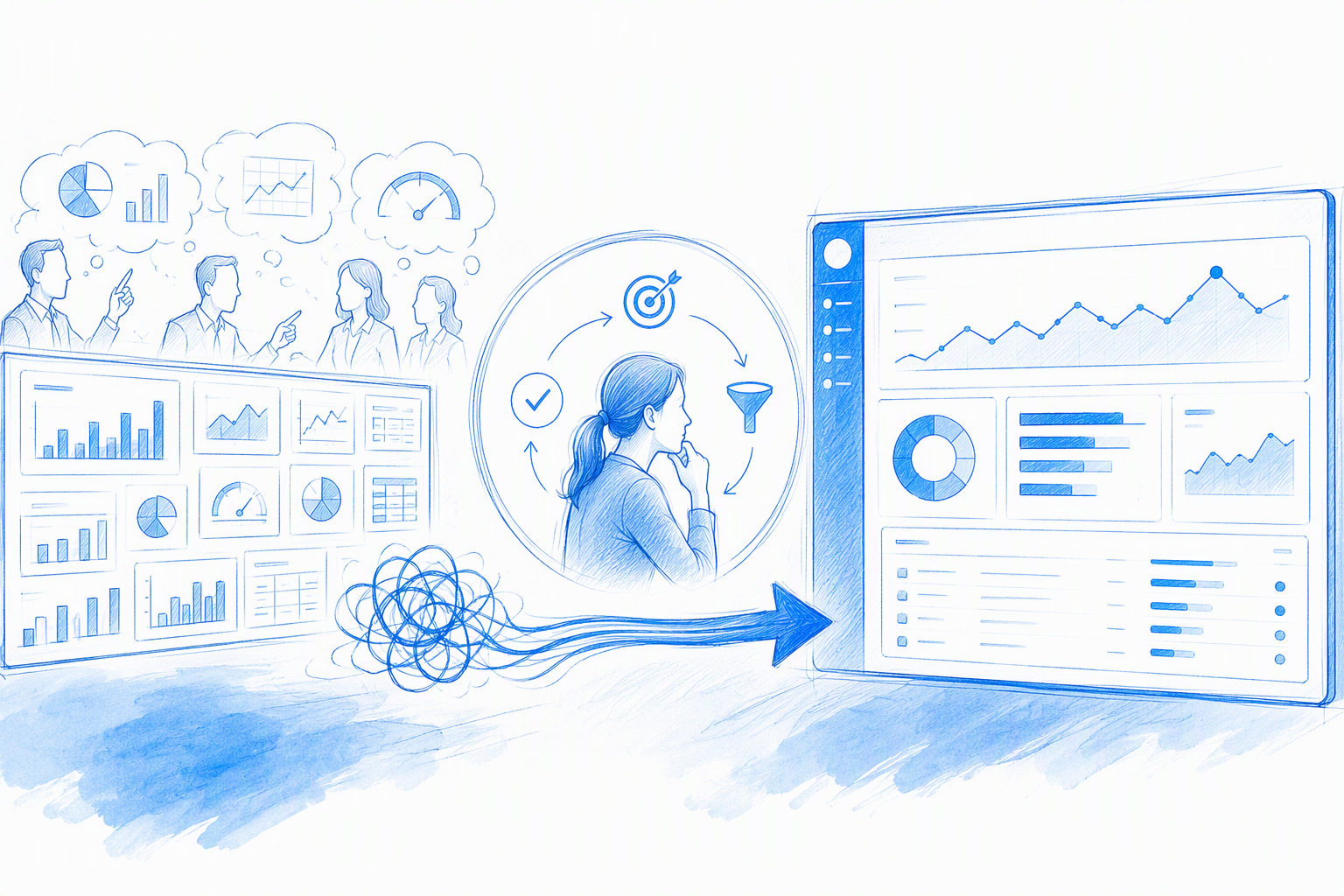
Stakeholders naturally advocate for the metrics they own. If every request receives equal visual weight, the dashboard may become politically complete and practically unusable.
We begin by documenting the decisions each role makes, how often they occur, and what evidence is necessary. This reframes “Can we add this metric?” as “What user decision improves when this metric is visible?”
A decision inventory can capture:
| Role | Recurring decision | Cadence | Required evidence | Available action |
|---|---|---|---|---|
| Support manager | Rebalance queues | Frequent | SLA risk, load, ownership | Reassign work |
| Account manager | Prioritize renewals | Regular | Value, risk, engagement | Create intervention |
| Executive | Adjust investment | Periodic | Trend, target, forecast | Approve or redirect |
We then separate metrics into three levels:
- Primary signals: Indicate whether attention is required
- Diagnostic context: Helps explain the signal
- Reference data: Supports occasional lookup or deeper review
Our metric inclusion test is deliberately strict: What decision changes when this number changes?
If nobody can answer, the metric may belong in a report, detail page, or export. If several metrics inform the same decision, we identify which signals the issue first and which explain it.
Other useful criteria include:
- Relevance to the user’s responsibility
- Urgency of the resulting action
- Frequency of use
- Cost of missing the signal
- Reliability of the underlying data
- Ability to influence the outcome
- Space and implementation cost
This makes stakeholder discussions less subjective. We are not removing someone’s metric because it is inconvenient; we are assigning it a place based on the job it performs.
Scope clarity matters before UI production begins. Our scope-first guide to UI and UX design services explains why screens, states, roles, interactions, and technical constraints should be defined as connected deliverables.
A practical KPI hierarchy
A dashboard overview should lead with a small set of signals showing whether attention is required. The appropriate number depends on the task, but primary status must be obvious.
Each headline value needs context. A large number is not informative unless users know what it measures, over what period, compared with which baseline, and whether its direction is positive or negative.
Useful context can include:
- Target or threshold
- Previous period
- Expected range
- Direction of change
- Data freshness
- Metric definition
- Affected population
Drivers and comparisons can sit one level deeper through progressive disclosure. Selecting a headline signal might reveal segmentation, historical movement, affected records, and likely causes.
Low-frequency reference metrics should move to reports, detail pages, or exports. They remain available without competing with routine decisions.
The visual treatment should reflect the same hierarchy. Primary signals receive prominent placement; diagnostic values stay close to the issue they explain; reference information remains accessible but quieter.
When fewer metrics create more value
Subtraction improves scannability because users can recognize priority without repeatedly parsing unrelated values. Fewer visible metrics also make unusual conditions easier to notice.
The goal is not minimalism for its own sake. Expert users may need substantial context, and removing it indiscriminately can turn a serious tool into an oversimplified summary.
We preserve that depth through layers:
- The overview identifies status and priority.
- A focused analysis layer explains the signal.
- A record-level view supports verification and action.
- Reports or exports support extended analysis.
This approach gives new users a clear entry point while preserving depth for experienced users. It also prevents every expert requirement from becoming a permanent block on the landing screen.
A dashboard succeeds when users reach the right level quickly. It does not need to display every level at once.
Dashboard design principles for hierarchy, scannability, and density
Dashboard hierarchy comes from more than component size. Placement, grouping, alignment, whitespace, typography, contrast, and interaction all communicate what matters.
We design scanning paths around the sequence of work:
- Status: Is the situation healthy?
- Exceptions: What requires attention?
- Explanation: Why is it happening?
- Action: What can be done?
- Feedback: Did the action work?
Placement should follow user expectations, platform conventions, and the task. A primary exception list may deserve more space than a KPI strip, even if familiar dashboard patterns suggest otherwise.
Emphasis must be selective. If every card uses bold numbers, bright colors, alert icons, and trend badges, none has real priority.
Whitespace helps separate concepts, but more whitespace does not automatically improve dashboard UX. Density should reflect the work. An executive overview can be spacious; an operations table may need controlled density so users can compare records and perform repeated actions.
Simple dashboard design means reducing unnecessary interpretation, not necessarily reducing visible information. A dense table with clear columns may be easier to use than a sparse layout that requires constant navigation.
We also treat visual trends with caution. Low-contrast gradients, oversized cards, floating panels, and ornamental charts can make appealing portfolio images while weakening comprehension in a working product.
Why the card grid often fails
The card grid creates immediate order, but it can make unrelated metrics appear equally important.
A row of identical rectangles implies that every item belongs to the same conceptual level. In reality, one may be a critical alert, another a monthly outcome, and another a low-priority reference value.
The grid can hide weak information architecture behind tidy spacing. Stakeholders see every requested metric, but users still have to construct the relationship between them.
Instead of filling an arbitrary layout, we group information by workflow. A support dashboard might contain:
- A clear SLA risk summary
- An exception queue ordered by urgency
- Ownership and workload context
- Direct reassignment controls
- Secondary trends below the active work area
Sections can have different sizes because they have different jobs. Consistency should come from the component system, spacing logic, and typography—not identical containers.
Cards remain useful when they represent coherent objects or distinct modules. They should not be the automatic wrapper for every value.
Progressive disclosure without hiding essential context
Progressive disclosure keeps the initial screen focused while making deeper information available on demand. It works well for diagnostics, history, definitions, secondary dimensions, and occasional controls.
Essential context should remain visible. Users should not need to hover over an unlabeled icon to discover that data is stale or open a drawer to learn the active date range.
Keep these elements visible when they affect interpretation:
- Current status
- Active scope and filters
- Time range
- Comparison basis
- Data freshness
- Critical warnings or limitations
- Immediate action
Deeper layers can use expansion, side panels, tabs, or dedicated detail views. A side panel works well for reviewing a record without losing the list. A dedicated page is better when investigation requires history, comments, and multiple actions.
Progressive disclosure should shorten the main path without turning the interface into a scavenger hunt.
Choose the right visualization—or use no chart
Dashboard data visualization should begin with the user’s question, not a desire to make the interface look creative. Each format should reduce the effort needed to reach an accurate interpretation.
| User question | Useful format |
|---|---|
| What is the current value? | KPI value with context |
| Which category is larger? | Bar chart |
| How has it changed? | Line chart |
| Where is the issue located? | Map, when geography matters |
| Which records need action? | Ordered list or table |
| What is the current state? | Status label or summary |
| How do parts contribute? | Stacked bar with limited categories |
KPI cards should be reserved for headline values. Each needs a label, unit, time scope, comparison, and meaningful status where applicable.
Bar charts work well for category comparison because they use a shared baseline. Line charts suit change over time, provided intervals and missing data are handled honestly.
Maps help when location affects the decision. If users need to rank regions precisely, a sorted bar chart or table may be clearer.
Plain text can outperform a chart. A sentence stating that several high-value renewals require review is already interpreted and action-oriented.
Ordered lists and status labels are equally valid components. We do not add a visualization when it increases interpretation effort without adding insight.
When a table is the strongest dashboard component
A table is often the best choice when users need precise lookup, multivariable comparison, sorting, selection, and direct action. It is not a fallback for failed visualization; it is a capable interface pattern.
Consider an account dashboard where users compare renewal date, contract value, engagement, risk, owner, and next action. A bubble chart might expose a broad pattern, but it cannot support accurate lookup or bulk reassignment as effectively as a well-designed table.
Useful table features can include:
- Pinned record identifiers
- Sensible default sorting
- Explicit status labels
- Column visibility controls
- Search and focused filters
- Row selection and bulk actions
- Inline actions for frequent tasks
- Pagination or virtualization for large datasets
- Sticky headers
- Density options where necessary
Every column should have a reason to exist. If a field does not influence scanning, comparison, or action, it may belong in the record detail.
Horizontal scrolling should also be deliberate. Pinning the identifying column preserves context, but mobile may require a different pattern rather than a miniature desktop table.
Prevent misleading visualizations
Trustworthy visualizations use clear labels, honest scales, visible time ranges, and defined units. Decorative polish should never obscure how data is encoded.
Truncated axes can exaggerate change. Dual axes can imply relationships that are hard to assess. Three-dimensional effects distort proportions, while excessive smoothing can hide volatility.
Charts also need comparison context. A number is not an insight simply because it has an arrow beside it.
Clarify:
- Which period is shown
- What the value is compared with
- Whether a change is absolute or relative
- How missing values are handled
- Whether data is complete
- Which timezone applies
- What determines status
Annotations can explain releases, outages, or methodology changes. If a metric definition changes, the interface should show that discontinuity.
Accuracy is part of UI craft. A beautiful chart that encourages the wrong interpretation is a design failure.
Design action-oriented filters, drill-downs, alerts, and comparisons
An actionable dashboard connects observation to investigation and resolution. Users should not have to memorize a suspicious value, navigate elsewhere, rebuild the filter context, and search for the affected records.
Filters need clear labels and predictable scope. A segment selection should make it obvious which components changed and whether the filter persists in detail views.
Active filters should stay visible through chips, summaries, or a persistent control area. A dashboard becomes misleading when users forget they are viewing one region, owner, or period.
State preservation is equally important during drill-down. Back navigation should return users to the same filters, sorting, pagination, and scroll position where practical.
Alerts should represent exceptions requiring intervention, not every data change. A useful alert explains:
- What changed
- Why it matters
- Who or what is affected
- When it happened
- Whether action is required
- Where to investigate
- How to acknowledge or resolve it
Repeated notifications around a threshold may require cooldown or boundary logic. Product, data, and engineering teams should define that behavior together.
A useful investigation flow
A strong investigation flow moves from signal to evidence without losing context:
- A summary identifies a meaningful exception.
- A comparison shows where it is concentrated.
- A filtered list identifies affected records.
- A detail view explains an individual case.
- A direct action supports resolution.
- Feedback confirms the new state.
For example, a renewal-risk signal might open a comparison by customer tier. Selecting a segment could reveal accounts ordered by value and urgency, followed by actions to assign outreach or update an intervention plan.
Breadcrumbs, clear titles, persistent filters, and restored navigation state keep users oriented. Reversible interactions reduce the risk of testing a filter or changing an assignment.
Drill-down should not feel like falling through unrelated pages. The connection between overview, segment, and record must remain visible.
Why users still export to spreadsheets
Spreadsheet exports are not automatically evidence of product failure. Users may need offline review, custom modelling, auditing, external collaboration, or integration with established processes.
Repeated exports can still reveal dashboard gaps, including limited support for:
- Comparing several dimensions
- Applying precise filters
- Annotating records
- Editing in bulk
- Combining external data
- Preserving a snapshot
- Sharing a custom view
- Accessing exact values behind charts
We recommend observing what happens after export. If users repeatedly create the same calculated field or manually assign owners, the product may need a native capability.
Legitimate export workflows should remain supported with clear formats, definitions, timestamps, and applied-filter summaries. The goal is not to trap data inside the product.
Export should be a purposeful option, not an escape hatch from a shallow interface.
Use dashboard templates as systems, not finished solutions
A dashboard template is a starting hypothesis. It proposes structure, component relationships, and interaction patterns, but it cannot know the user’s role, data quality, decision cadence, or operational constraints.
A practical dashboard layout template may follow this sequence:
- Orientation and scope: Role, period, freshness, and active filters
- Priority signals: Meaningful indicators
- Exceptions: Items requiring attention
- Analysis: Drivers, trends, and comparisons
- Actionable detail: Records, owners, and controls
This is not a universal wireframe. An operational dashboard may elevate the exception list above summary metrics, while an analytical dashboard may lead with controls and comparisons.
Copying an attractive template can import the wrong hierarchy. A layout built for passive executive monitoring will not become an operations tool simply by changing its labels.
Templates may also encode expensive assumptions, such as live charts, unrestricted data access, drag-and-drop behavior, or component combinations that perform poorly with real datasets.
We distinguish visual inspiration from evidence that a dashboard works. A gallery image can demonstrate composition, typography, or color, but it rarely shows delayed feeds, restricted permissions, empty results, loading behavior, or large datasets.
A strong buyer’s guide to build-ready product design helps teams evaluate more than polished screens. Production-ready dashboard work includes interaction rules, states, responsive behavior, component logic, and implementation alignment.
A decision-first dashboard design template
Before arranging components, define:
| Template field | Question |
|---|---|
| Audience | Which role is this for? |
| Recurring decision | What decision should the dashboard improve? |
| Decision cadence | How often is that decision made? |
| Success signal | What indicates normal, positive, or risky performance? |
| Supporting context | What explains the signal? |
| Available action | What can the user do next? |
| Feedback | How is the action confirmed? |
| Failure states | What happens when data is late, missing, or restricted? |
Next, map each section to a user question:
- Header: “What scope and period am I viewing?”
- Risk summary: “Does anything require attention?”
- Segment comparison: “Where is the risk concentrated?”
- Account table: “Which records are affected?”
- Action control: “What can I do now?”
Remove sections that cannot state their job clearly. “Stakeholders asked for it” or “Most dashboards have one” is not enough.
Then test the sequence with realistic scenarios. Can a manager identify the highest-risk queue and reassign work? Can an executive explain why a trend changed? Can a restricted user understand what they are allowed to see?
This approach turns dashboard design from component assembly into traceable product reasoning.
How to evaluate dashboard design examples
Dashboard examples should be assessed through behavior, not just visual style. A polished screenshot cannot prove that users will understand the data or complete their work.
We evaluate examples against these areas:
- Time to insight: Can users identify status quickly?
- Priority: Is the most important signal clear?
- Investigation depth: Can users understand causes and affected records?
- Actionability: Does the dashboard support the next step?
- Accessibility: Is meaning available beyond color and pointer interaction?
- Real-data resilience: Does the layout survive imperfect values and states?
We also ask what trade-offs shaped the design. A dashboard with fewer visible metrics may prioritize speed over broad exploration. A dense table may prioritize operational comparison over presentation.
An example becomes useful when it explains why a visualization was selected, which role it serves, what was excluded, and how the experience behaves when data or systems fail.
Design for mobile, accessibility, and real-world data states
Responsive dashboard design is not the act of squeezing a desktop grid into a narrow viewport. Mobile changes what can be seen, what can be manipulated, and often why the dashboard is opened.
We start by identifying the mobile job. A user may need to check an urgent status, approve an action, review assigned tasks, or receive context while away from a desk—not perform full analytical exploration.
A focused mobile dashboard might surface:
- One urgent status
- Supporting signals
- A prioritized task list
- A direct action
- A path to deeper detail
That is stronger than stacking every desktop card vertically. A long column preserves content but destroys hierarchy because users cannot see the relationships between sections.
Accessibility must be built into components and interactions. Useful requirements include:
- Sufficient text and interface contrast
- Explicit chart and control labels
- Keyboard navigation
- Visible focus states
- Logical heading structure
- Screen-reader-friendly summaries
- Non-color status indicators
- Adequate target sizes
- Alternatives to hover-only content
- Reduced-motion support where relevant
Status should use text, shape, iconography, or position in addition to color. Color alone is not enough to communicate risk or success.
Real products also contain states that polished mockups omit:
- Initial or partial loading
- No data yet
- No filter results
- Data-source errors
- Delayed or incomplete data
- Partial permissions
- Unsupported values
- Chart rendering failure
Each state should explain what happened and what users can do. A blank card with a spinner or dash is rarely sufficient.
Responsive patterns that preserve meaning
Responsive design should reorder content by urgency, not desktop coordinates. The most important mobile element may appear lower in the desktop layout because the wider view supports a different scanning pattern.
Wide comparisons can become:
- A focused summary with a selectable metric
- Scrollable content with clear cues
- A compact ranked list
- A segmented detail screen
- A limited time-range selector
- A record-first task view
Charts may need fewer labels, a shorter default range, or a textual summary. Removing information is acceptable when it is not required for the mobile decision.
Tables require particular care. Turning every row into a card can become repetitive and difficult to compare, while shrinking every column destroys readability.
A better approach may prioritize identifying fields, status, and the primary action, then open a detail screen for secondary attributes. Comparison-heavy work can remain desktop-oriented while urgent actions stay available on mobile.
“Stacks on mobile” is not a complete responsive specification. Behavior should be defined component by component.
Stress-test the polished mockup
Real-data stress testing exposes weaknesses before production. We test layouts with values that are less cooperative than design-file placeholders.
Useful cases include:
- Long names and labels
- Localization and text expansion
- Zero or negative values
- Very large or small values
- Extreme outliers
- Missing values
- Stale timestamps
- Delayed feeds
- Partial permissions
- Large record sets
- Loading and chart failures
Zero, missing, and unavailable are different states. Displaying all of them as zero can create a false conclusion, while an unexplained dash creates ambiguity.
Restricted users should see an intentional permission state. Unexplained gaps make the interface look broken and may imply that no data exists.
We also test combinations. A translated label inside a loading component on a narrow screen may break a layout that passed each condition separately.
At amajaying.com, we connect information architecture, components, responsive behavior, and implementation constraints rather than treating the final mockup as the finish line.
Make dashboard design buildable: frontend feasibility and tool choice
The best dashboard design software depends on the intended output. Exploration, interface design, business intelligence, spreadsheet analysis, and production implementation are different jobs.
| Need | Appropriate tool category |
|---|---|
| Early concepts and flows | Interface design or prototyping tool |
| Familiar tabular analysis | Spreadsheet software |
| Connected business reporting | Business intelligence platform |
| Custom role-aware product | Designed and developed frontend |
| Data-model exploration | Analytical or notebook environment |
Spreadsheets can be effective for calculations, pivot-based analysis, quick prototypes, and shareable models. They offer a practical way to test whether a metric or comparison is useful before investing in a custom interface.
Their limits become clearer when a product needs role-aware permissions, responsive behavior, guided workflows, reusable interactions, or a consistent customer-facing experience. A spreadsheet dashboard and a production SaaS dashboard are not interchangeable outputs.
Design, product, data, and engineering need early agreement on:
- Data availability
- Metric definitions
- Aggregation logic
- Refresh cadence
- Permissions
- Interaction value
- Implementation effort
- Performance expectations
- Failure behavior
A polished filter is irrelevant if the system cannot return the required segment at an acceptable speed. A live chart is risky if its sources update on different schedules.
Reusable dashboard components should define more than appearance. Each needs documented variants, states, behavior, accessibility requirements, and responsive rules.
A chart component might specify supported data shapes, category limits, label rules, tooltip behavior, loading and error states, keyboard access, mobile transformations, and export behavior.
Where possible, prototypes should use realistic data and the intended charting or table library. Design-tool charts can imply behavior that production libraries do not support without custom engineering.
Frontend feasibility is not a late compromise. It is part of making dashboard choices that can ship.
Design-to-frontend decisions that prevent rework
Several technical questions should be answered before the final UI is polished:
- Where is each metric calculated?
- Which records contribute to it?
- How frequently does it refresh?
- How are timezones and date boundaries handled?
- Which roles can see each value?
- What latency should users expect?
- How many records can exist?
- What happens when one source fails?
Aggregation logic deserves special attention. Teams can use the same metric label while calculating it differently, creating distrust that visual improvements cannot repair.
Permissions may affect pages, widgets, fields, or actions. The component architecture should support those differences without leaving confusing gaps.
Performance planning should cover rendering, data transfer, and interaction feedback. Large tables may require server-side filtering or virtualization, while complex visualizations may need aggregation or progressive loading.
Every interaction needs feedback. Filter changes, assignments, bulk actions, and refreshes should communicate progress, success, or failure without freezing the interface.
Graceful failure matters because dashboards depend on several systems. If one chart fails, the entire page should not necessarily become unusable. Components can report their own state while preserving working information elsewhere.
The result should be a shared build plan, not a stack of attractive screens handed to engineering.
FAQ
What is the difference between reports and dashboards?
Dashboards support recurring monitoring, investigation, and decisions. Reports usually provide deeper or retrospective records for analysis, distribution, or documentation. The meaningful differences are data freshness, usage pattern, interaction, level of detail, and proximity to action—not whether charts are present.
What software is best for creating dashboards?
The best software depends on the output. Interface design tools suit concepts and prototypes, spreadsheets suit flexible analysis, BI platforms suit connected business reporting, and custom frontend development suits role-aware product experiences. We recommend defining the workflow before selecting the tool.
What are useful Home Assistant dashboard templates?
Useful Home Assistant templates are organized around household tasks, device priority, room context, and quick controls. They make urgent states, such as an active alarm or unlocked access point, easy to notice. We would avoid generic card grids that give every light, sensor, climate control, and energy value equal prominence.
What is the purpose of a dashboard?
A dashboard helps a defined user monitor important conditions, understand meaningful changes, and decide what to do next. Its purpose is not to display every available metric. An effective dashboard preserves context, supports investigation, and connects important signals to relevant actions.
What makes a dashboard effective?
An effective dashboard has clear priorities, reliable context, useful comparisons, fast investigation, and an obvious next action. It also handles real data, permission differences, loading failures, and responsive layouts. Visual polish should strengthen hierarchy and comprehension rather than distract from the decision the dashboard supports.
Build a dashboard that makes the next decision obvious
If a dashboard looks polished but users still miss exceptions, rely on repeated exports, or hesitate over the next step, the problem is bigger than chart styling. We can help shape a decision-first dashboard across UX, UI, component behavior, responsive design, and frontend feasibility. Explore amajaying.com to discuss an experience designed to be understood, built, and used.